LoopCast › Guides › QR code on screen
How to show a QR code on a projector or TV.
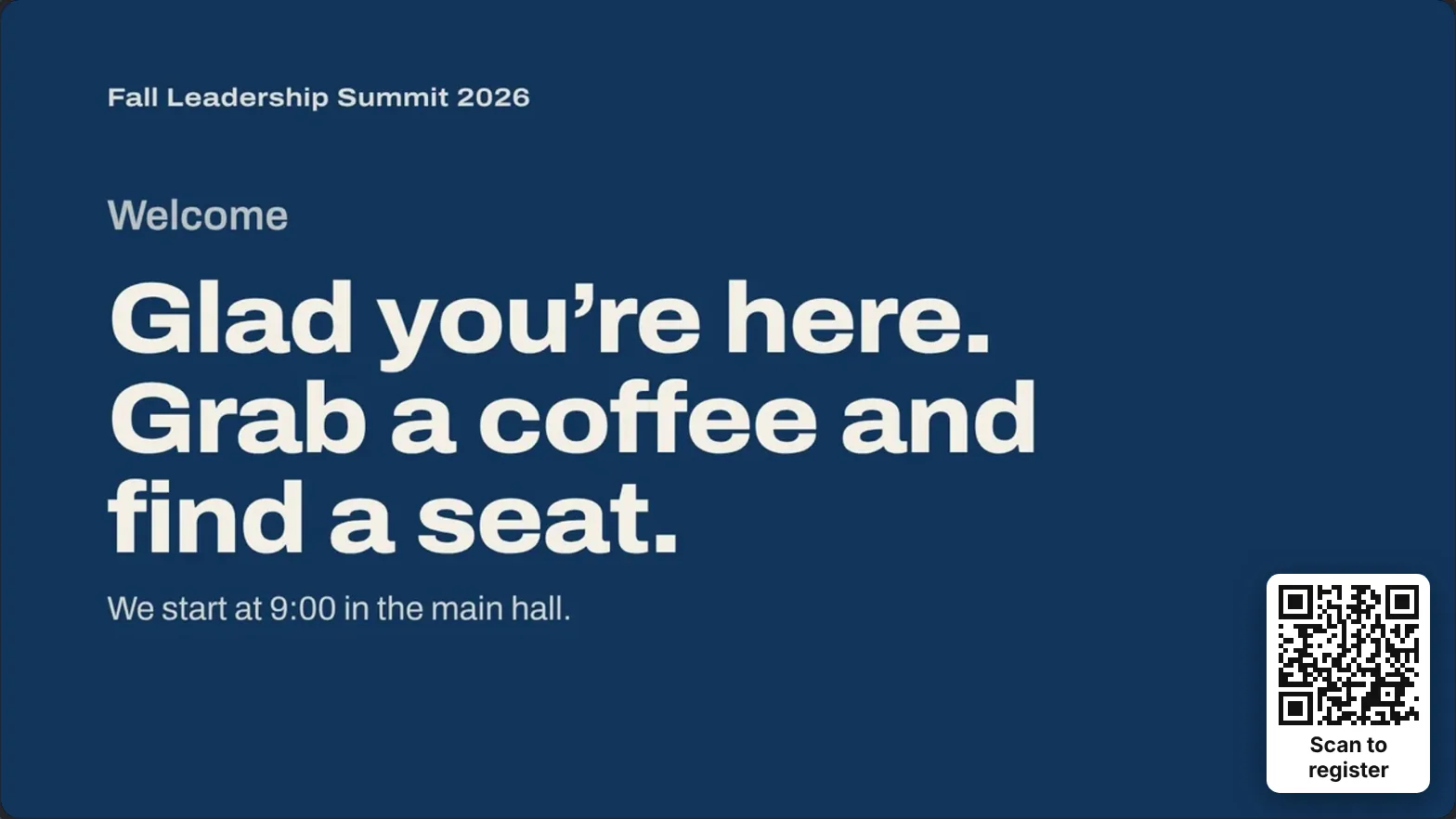
A QR code on the big screen is the fastest way to get a room to a giving page, a sign-up form or a survey. LoopCast puts one in a corner, over whatever is playing, and takes it away with one key.
The usual way to show a QR code is to make a slide for it. That works until the link changes, or you want the code up during the announcements and the walk-in loop, or you need it on for five minutes and then gone. LoopCast treats the QR code as an overlay instead: it sits in a corner on top of every slide, video and web page until you hide it.
Show a QR code in three steps
- Start your loop. Download LoopCast (free) for Windows or Mac, or open it in your browser. Choose your folder and press Show on projector.
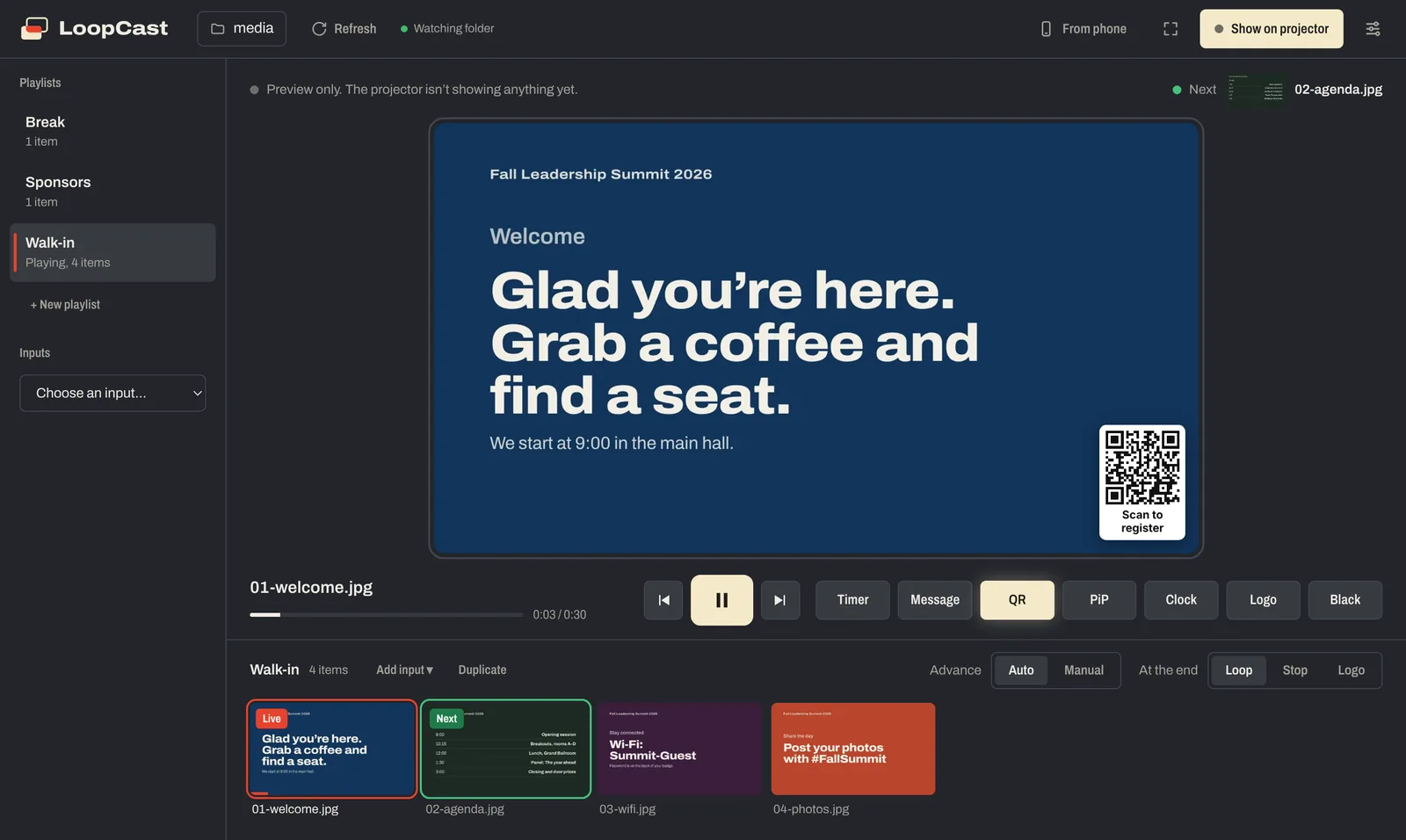
- Press QR (or the Q key). Paste the link people should open, like
https://example.org/give, and add a few words to go under it, like “Scan to give” or “Scan to register”. - Press Show QR code. It appears in the corner of the projector and the preview. Press QR or Q again to hide it.
LoopCast remembers the last link and caption, so next time you press QR they’re already filled in.
Pick the corner and size
In Settings › QR code, choose any of the four corners and Small, Medium or Large. Large is easiest to scan from the back of a big room; Small is enough for a lobby TV people walk right past. If the clock is in the same corner, the code sits neatly inside it. If picture in picture is in the same corner, LoopCast tells you so you can move one of them.
Ideas for what to link
- Churches: online giving, a connection card, next week’s sign-ups, the sermon notes.
- Conferences: the event app, session feedback, the sponsor raffle, slides for the talk that just ended.
- Trade show booths: book a demo, download the brochure, join the mailing list.
- Lobbies and schools: the Wi-Fi details page, a volunteer form, the lunch menu.
Make it easy to scan
- Size for the room. As a rough guide, people can scan a code from about ten times its width. On a big projector, Medium or Large reaches most rows.
- Shorter links make simpler codes. A long link with tracking tags makes a denser pattern that’s harder to scan from far away. Use a short page address where you can.
- Tell people what they’ll get. “Scan to give” or “Scan for the schedule” works better than “Scan me”.
- Leave it up long enough. Thirty seconds is short for a room of people finding their phones. Put it on during the announcement and leave it through the next few slides.
- Test it from the back row before the doors open.
Over web pages and in the stream
In the desktop app, the QR code also shows over live web pages in your playlist, and in the streaming window for OBS, so online viewers can scan it from their screens too. You can turn it on and off from your phone with the phone remote.
Questions
Do I need to put the QR code on a slide?
No. LoopCast draws the QR code itself, in a corner over whatever is playing, so you don’t need to edit any slides. Press QR (or Q), paste the link, and it appears.
Can I change where the QR code shows?
Yes. In Settings › QR code, pick any corner and Small, Medium or Large.
Does it work in the browser version?
Yes. The QR code works in the browser version and the desktop app. Showing it over live web pages is in the desktop app, since web pages are.
Does LoopCast track who scans the code?
No. LoopCast just turns your link into a code. If you want scan counts, use a link from a service that counts visits, or add tracking tags to your own page.
What happens if I have no internet?
Making the code doesn’t need internet; LoopCast draws it on your computer. People who scan it need internet on their phones to open the link.
Ready when the doors open.
Your computer will show a security warning the first time you open it. That’s expected. Here’s why, and what to click.