LoopCast › Guides › Slides in OBS
How to put looping slides into OBS, vMix or Ecamm.
Your livestream needs the same walk-in loop, countdown and announcements the room sees. LoopCast’s streaming window gives your streaming software a clean, fixed-size picture of the show to capture.
Most people run their pre-service or pre-event loop on the projector and then try to get the same slides onto the stream by screen-sharing a laptop, pointing a camera at the screen, or rebuilding the loop as a video file. All three are fiddly. A streaming window is simpler: LoopCast opens the show in its own window at exactly 1920×1080 or 1280×720, and your streaming software captures that window like any other source.
What you need
- The LoopCast desktop app for Windows or Mac. Download LoopCast (free) for Windows or Mac. The browser version can’t open a streaming window.
- Streaming software that can capture a window: OBS Studio (free), vMix, Ecamm Live, Streamlabs and most others can.
- Your slides, videos and PDFs in a folder, one folder per playlist.
1. Choose the streaming window
- Open LoopCast and choose your folder.
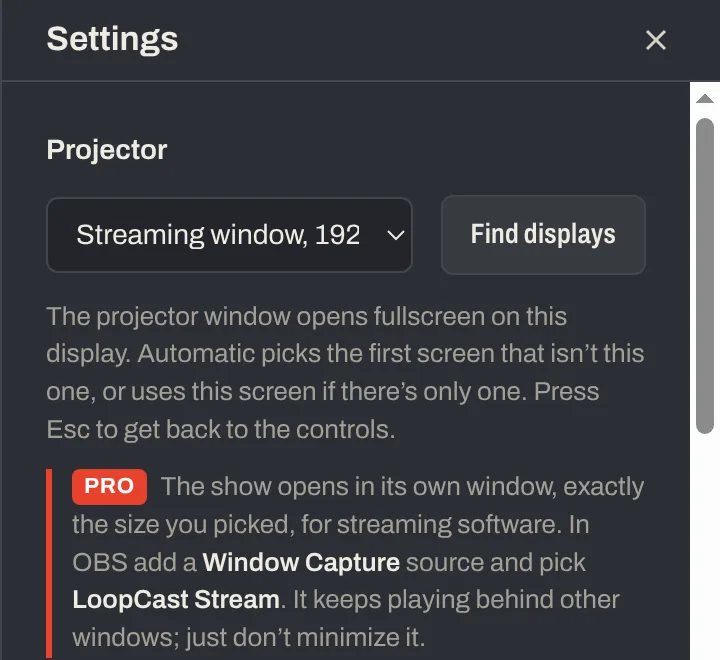
- Open Settings (the sliders icon, top right) and find Projector.
- In the menu, under For streaming, pick Streaming window, 1920×1080 or Streaming window, 1280×720. Match your stream’s output resolution; 1080 is right for most.
- Close Settings and press Open streaming window where Show on projector used to be.
2. Add it to OBS
- In OBS, under Sources, press + and choose Window Capture (on a Mac, macOS Screen Capture with the method set to Window Capture also works).
- Pick the window named LoopCast Stream.
- If the source doesn’t fill the canvas, right-click it and choose Transform › Fit to screen. Because the window is exactly the size you picked, there’s nothing to crop.
vMix: Add Input › Desktop Capture, then pick the LoopCast Stream window. Ecamm Live: add a Window Capture source and choose LoopCast Stream. Other apps work the same way: look for window capture, not display capture.
3. Run the show as usual
Everything you do in LoopCast’s controls shows up in the stream: switching playlists, Logo and Black, the countdown, the message bar, the clock, the QR code and picture in picture. Live web pages play in the stream too. You keep the control window on your screen and the stream sees only the show.
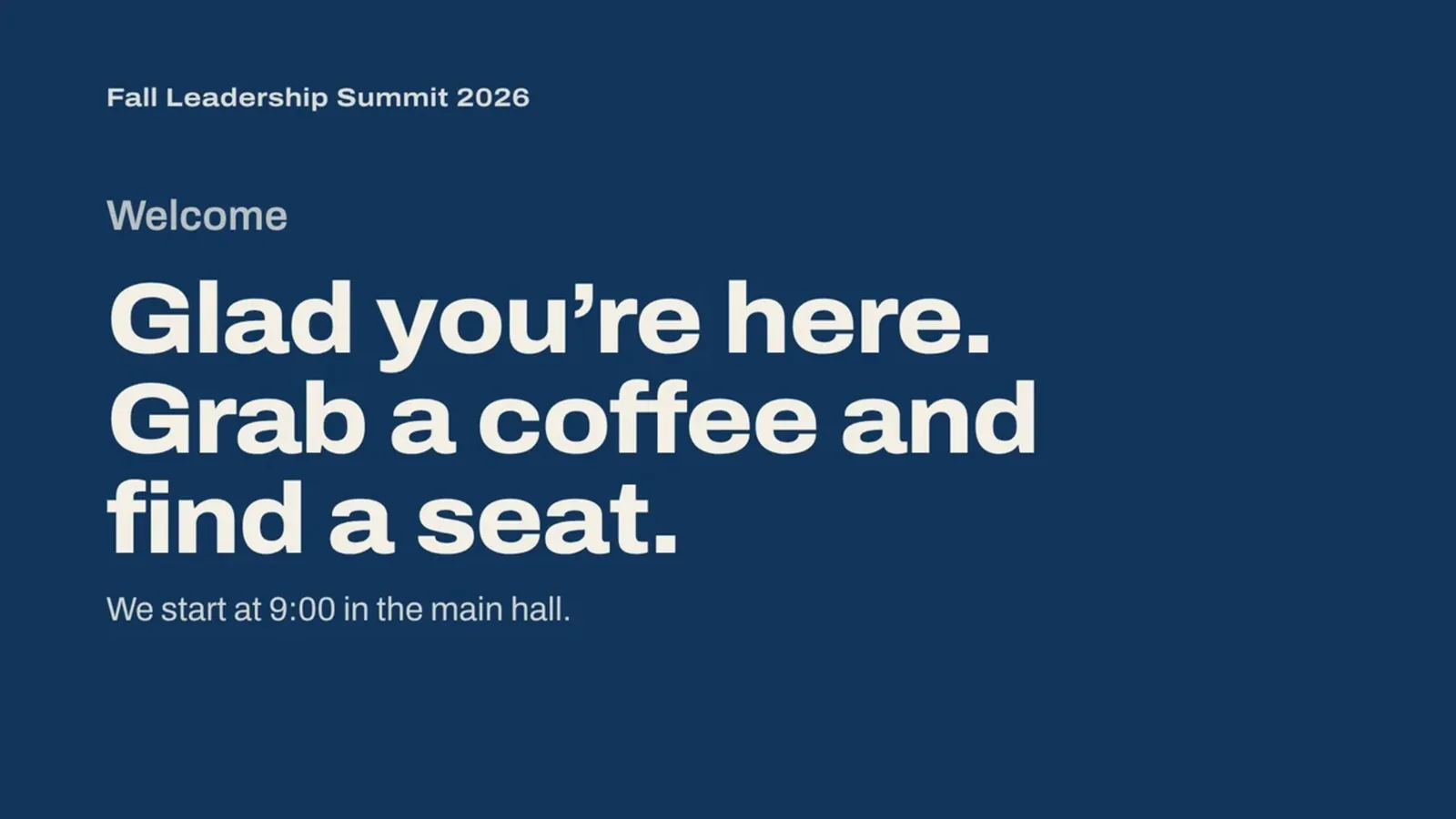
- Walk-in: loop welcome slides and announcements before the stream goes live.
- Countdown: press T and type a time, like 10:00 AM, so online viewers see “Starting in…” counting down. More about countdowns.
- Lower-third style notes: press M for a one-line message along the bottom or top of the picture.
- Giving or sign-up link: press Q to put a QR code in a corner. More about QR codes.
Tips for a clean capture
- Don’t minimize the window. It keeps playing behind other windows, so you can cover it, but most systems stop drawing a minimized window and the capture freezes.
- Pick the size before you go live. If you switch between 1920×1080 and 1280×720, re-check the source’s transform in your streaming software.
- Use window capture, not display capture. Display capture grabs the whole screen, menus and all.
- Audio: video sound plays through the computer as normal. Capture it in your streaming software as desktop or application audio, the same as any other app.
- One output at a time. The streaming window is one of the choices in the Projector menu, so LoopCast sends the show either to a display or to the streaming window. If the room and the stream need the same picture, feed the projector from your switcher or streaming software’s output.
The streaming window is a Pro feature in the desktop app. It’s a Pro feature, free for everyone while LoopCast is in its launch.
Questions
Can I use LoopCast with OBS?
Yes. In Settings › Projector, choose Streaming window (1920×1080 or 1280×720), press Open streaming window, and add it to OBS as a Window Capture source named LoopCast Stream.
Does the browser version have a streaming window?
No. The streaming window is in the LoopCast desktop app for Windows and Mac. In a browser you could capture the browser tab, but the size and edges are harder to control.
Will countdowns, messages and the clock show in the stream?
Yes. Everything that shows on the projector shows in the streaming window: Logo, Black, the countdown, the message bar, the clock, QR codes, picture in picture and live web pages.
Why did my OBS source freeze?
The LoopCast Stream window was probably minimized. Restore it; it can sit behind other windows and keep playing, but minimized windows usually stop drawing.
Which size should I pick?
Match your stream’s output resolution. Most streams are 1920×1080; pick 1280×720 if you stream at 720p and want to save processing power.
Does it cost anything?
The streaming window is a Pro feature. It’s free for everyone while LoopCast is in its launch.
Ready when the doors open.
Your computer will show a security warning the first time you open it. That’s expected. Here’s why, and what to click.