Every screen in the room, handled.
LoopCast plays a folder of slides and videos on the projector, on repeat, without internet. Drop in your files, press play, and get back to running the event.

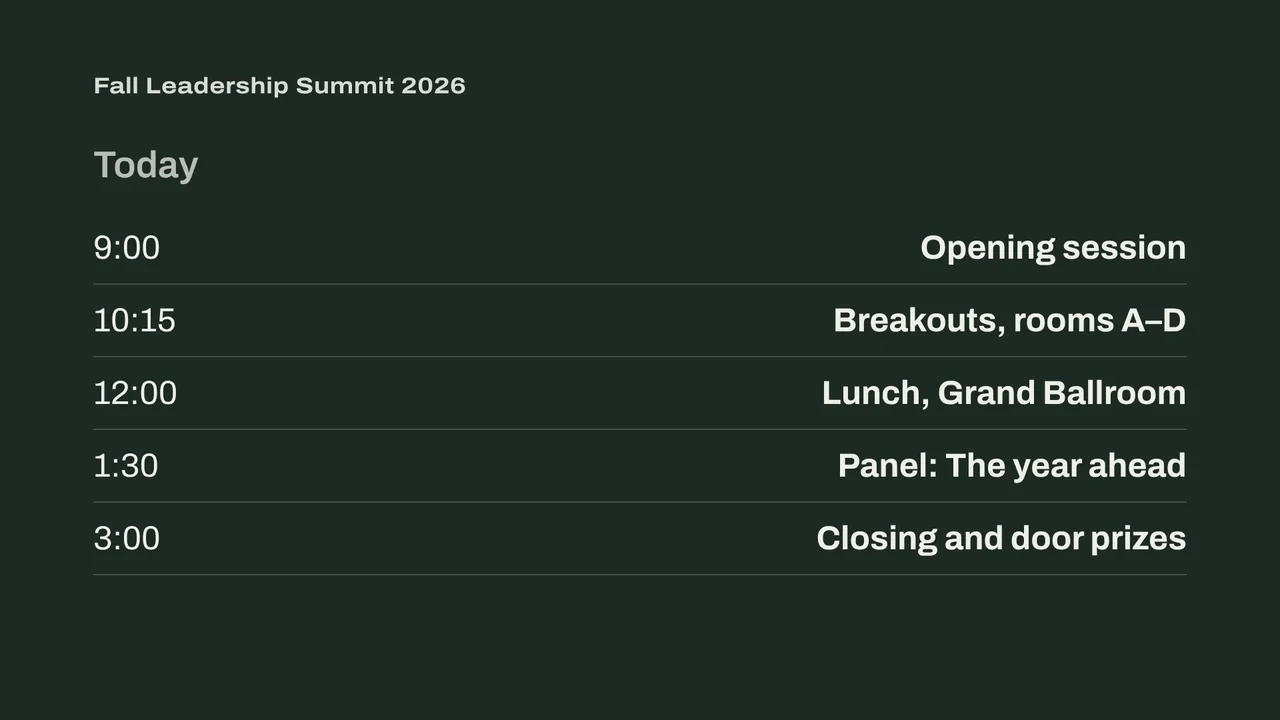
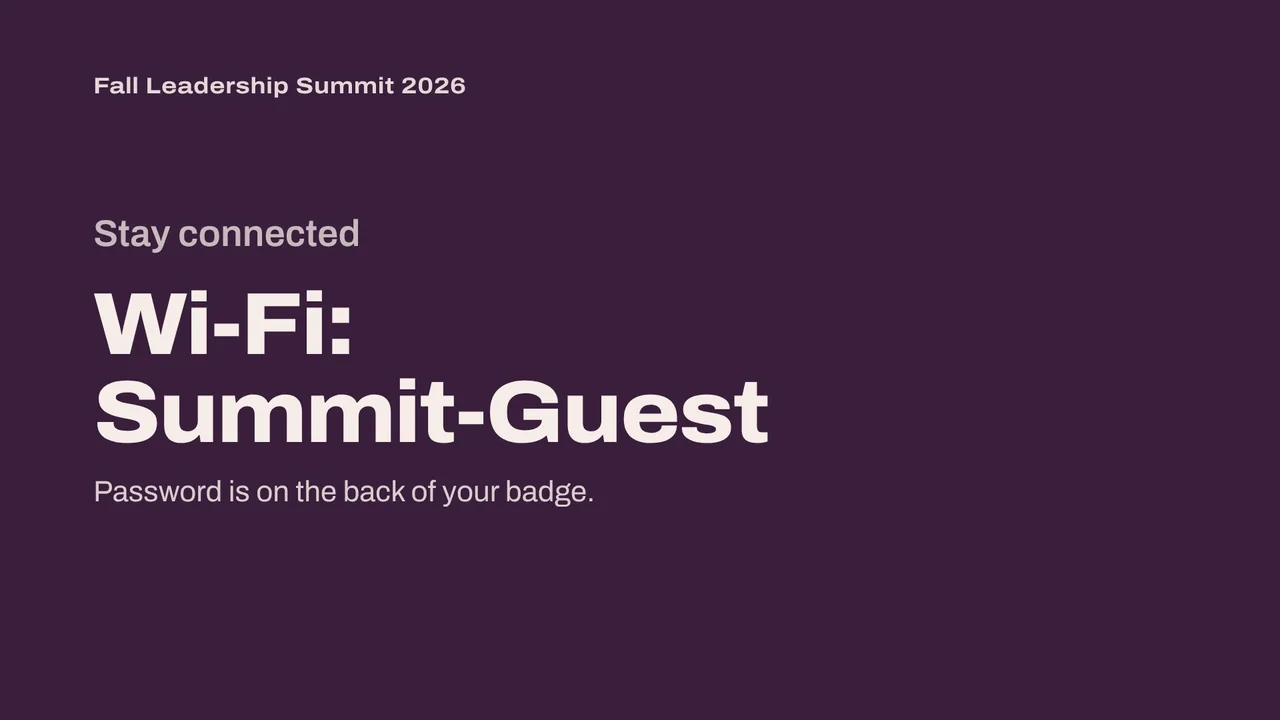

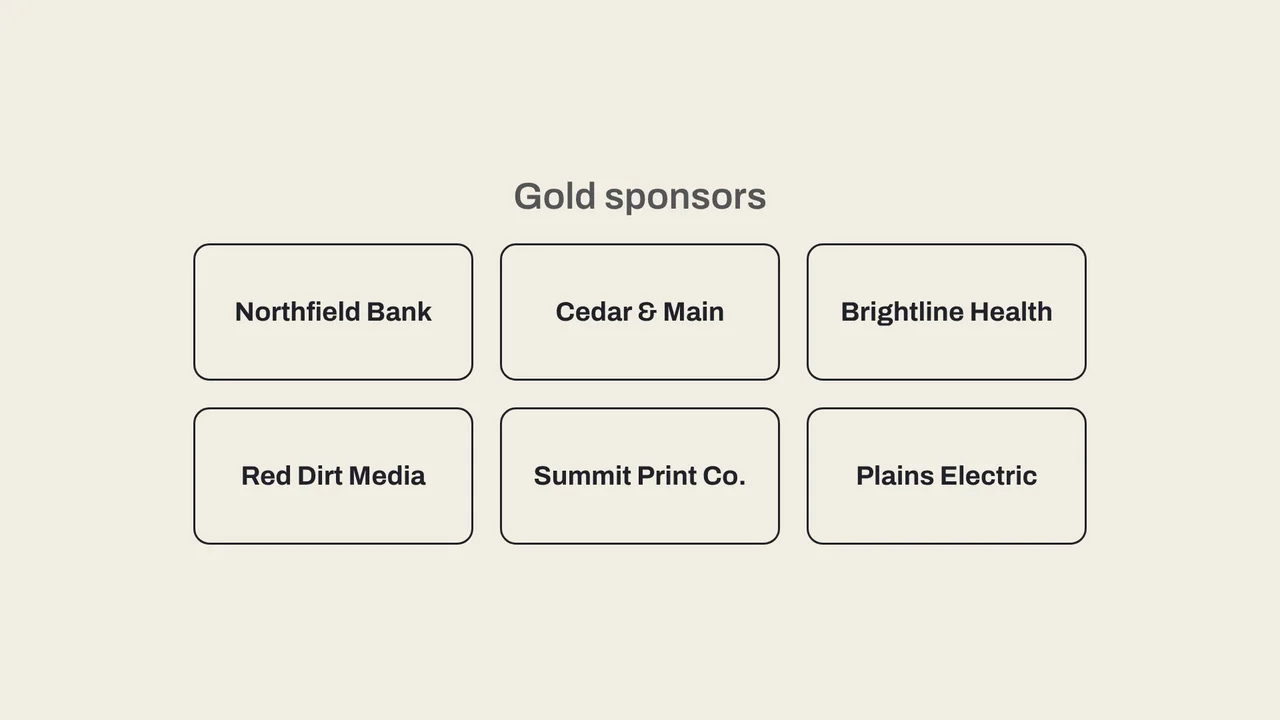
Set up in the time it takes to find the HDMI cable.
No slide software to wrangle and no accounts. LoopCast works from folders you already know how to make.
Put your files in folders
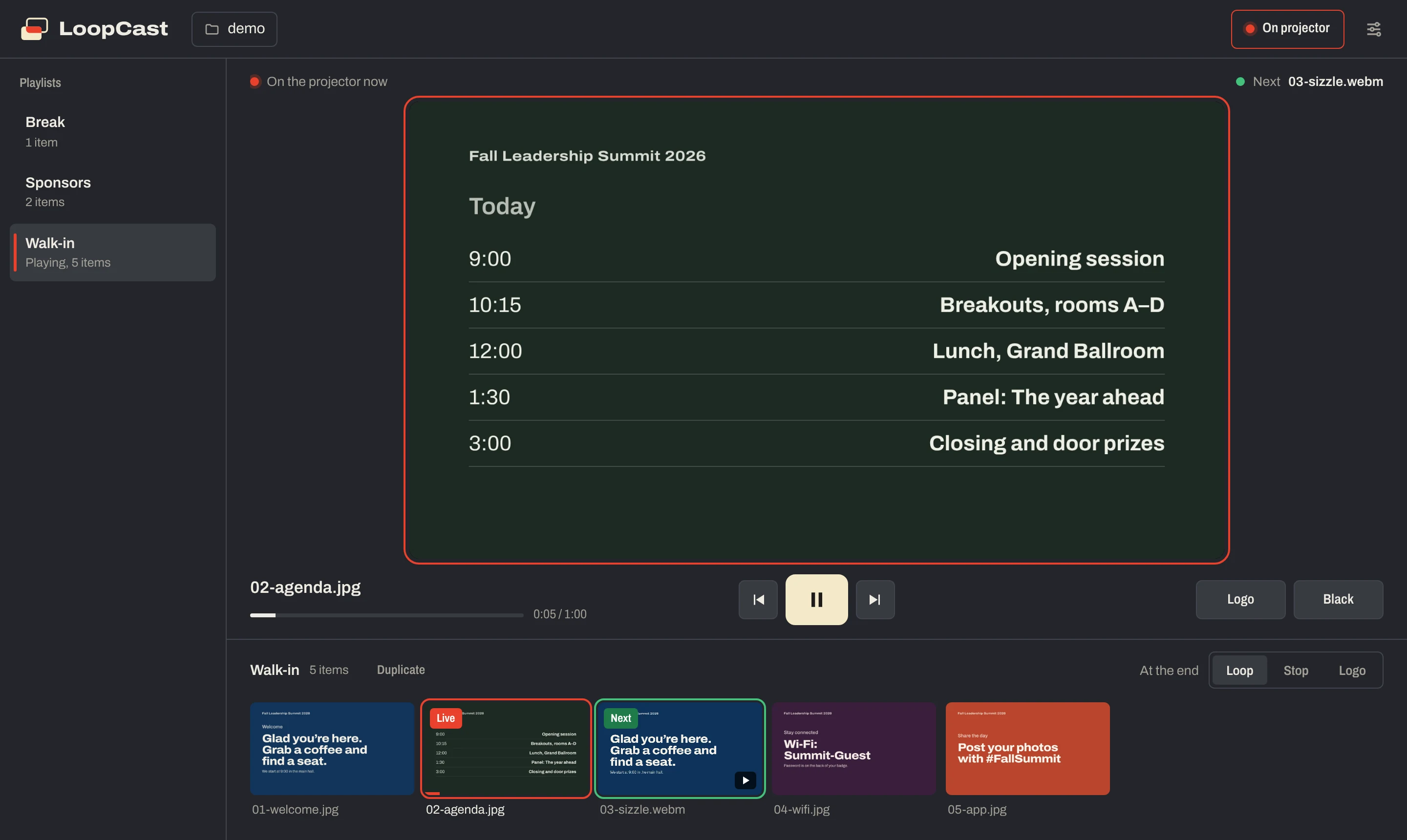
Each folder becomes a playlist. Name files 01, 02, 03 to set the order. Add a logo for the in-between moments.
Show on the projector
One button opens the output fullscreen on the second display, at the projector’s own resolution. Your laptop keeps the controls.
Press play
Slides hold for as long as you choose, videos play to the end, and the whole thing loops until you stop it.
Built for the AV table, not the boardroom.
Everything you need to keep a room’s screens right all day, and nothing you’ll have to learn on the spot.
Always know what the room is seeing.
The preview on your laptop matches the projector. A red outline means it’s live, and the next slide is marked in green so there are no surprises.
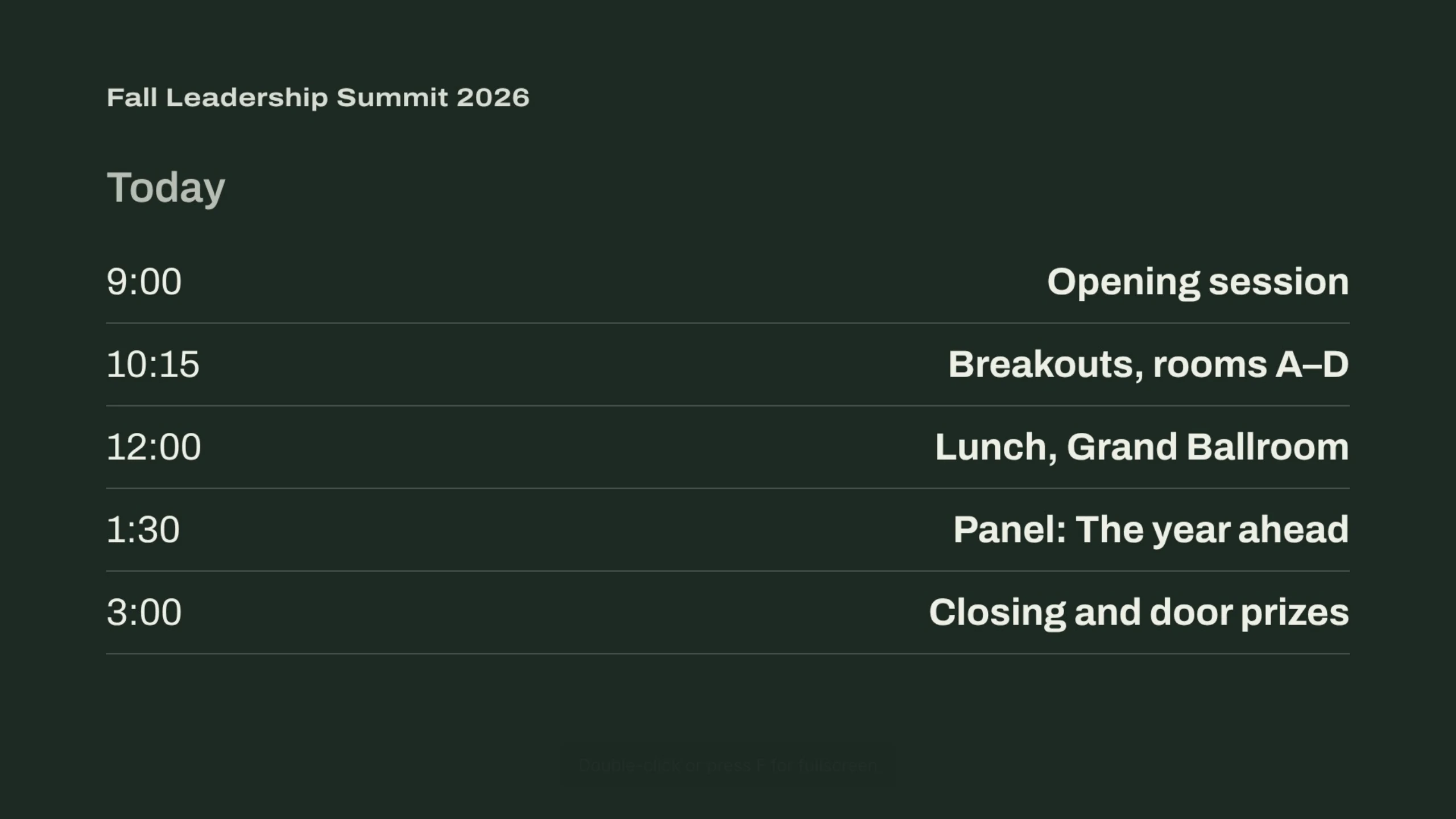
Make a lunch version without touching the original.
Duplicate a playlist, hide the slides that don’t fit, and give it its own ending. The original stays exactly as it was.
Need one slide or video to stay up? Set it to repeat until you press Next.

Set it once, then leave it alone.
Choose how long slides stay up, crossfade or cut, fit or fill the screen, and whether videos play sound. LoopCast remembers your folder and settings for next time.
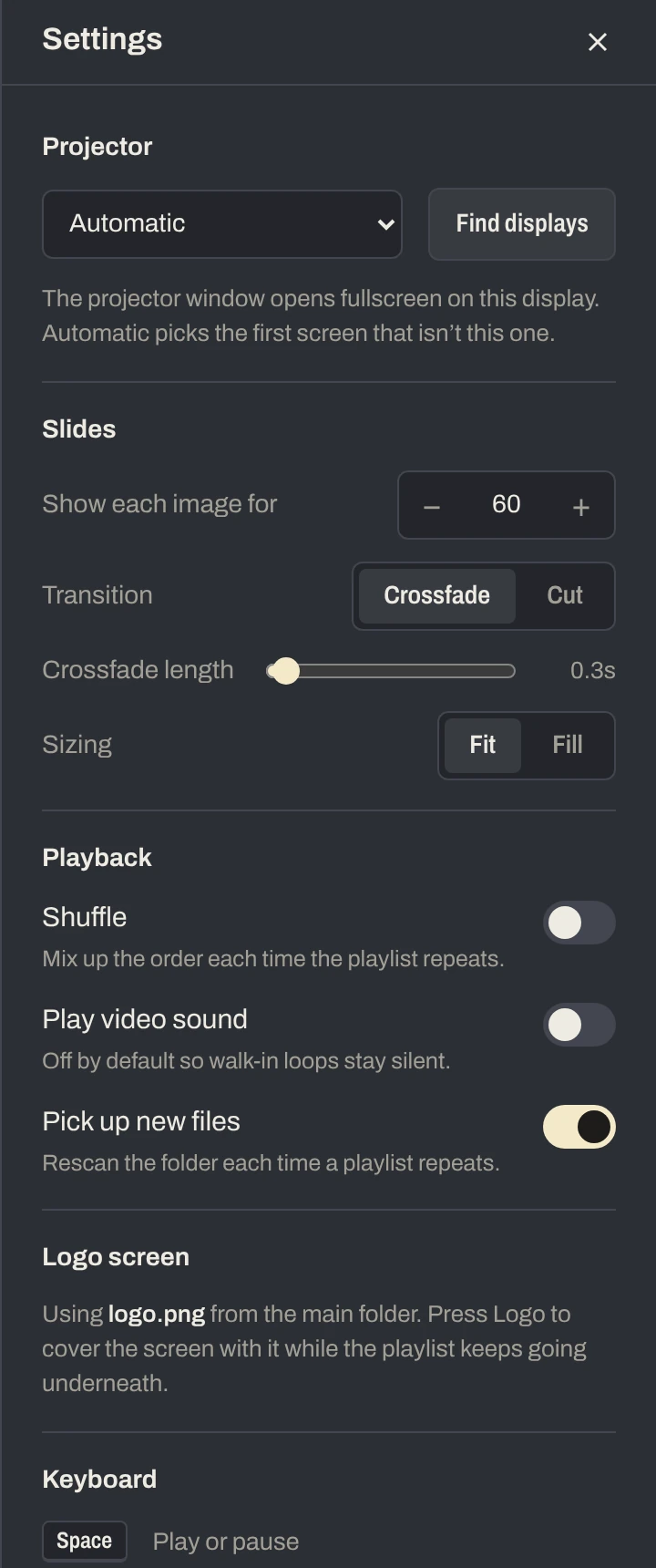
- Logo screen and fade to black
- Cover the screen with your event logo or go black with one key. The playlist keeps its place underneath.
- Loop, stop or end on the logo
- Each playlist decides what happens when it reaches the end.
- Drop in slides mid-event
- New files in the folder show up the next time the playlist comes around.
- Works without internet
- Everything runs on your computer, so a ballroom with bad Wi-Fi doesn’t matter.
- Keeps the screens awake
- No sleeping laptop or screensaver in the middle of a session.
- Live inputs
- Plug in an HDMI capture stick or camera and put a guest laptop, camera or Apple TV on the screen. Press Play to go back to the loop.
- Images and video
- JPG, PNG, GIF, WebP, SVG, MP4 and WebM. MP4 (H.264) is the safest choice for video.
Made for any room with a screen.
If you need slides or video on a loop, LoopCast keeps them going while you take care of everything else.
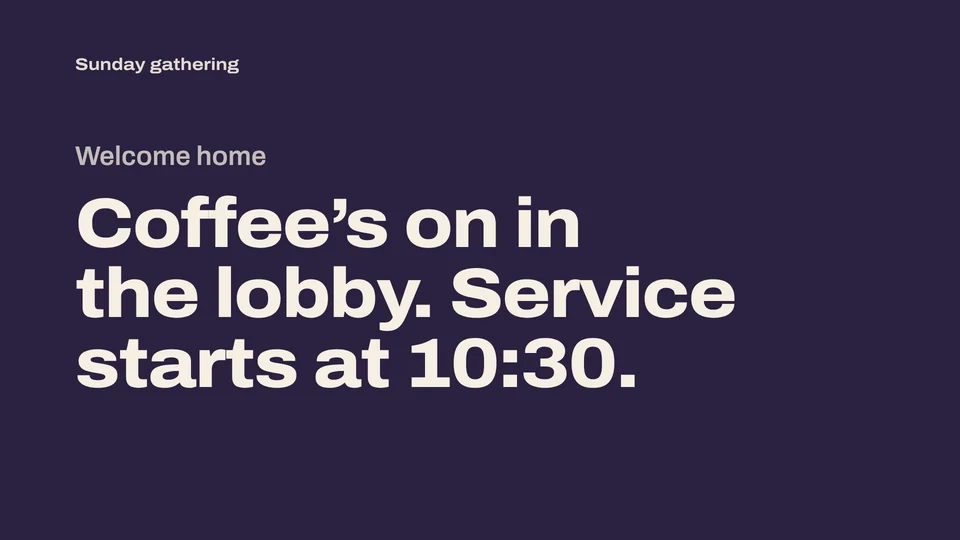
Churches
Welcome and announcement loops before the service, without tying up the presentation computer.
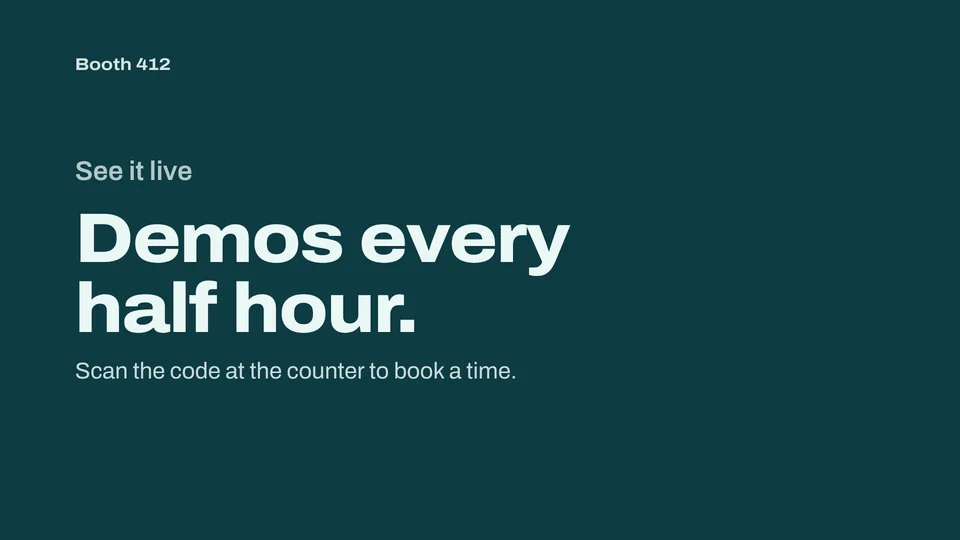
Trade-show booths
A product loop on the booth TV that runs all day, even when the show floor Wi-Fi doesn’t.

Schools
Hallway and cafeteria screens with this week’s news. Drop a new slide in the folder and it shows up.
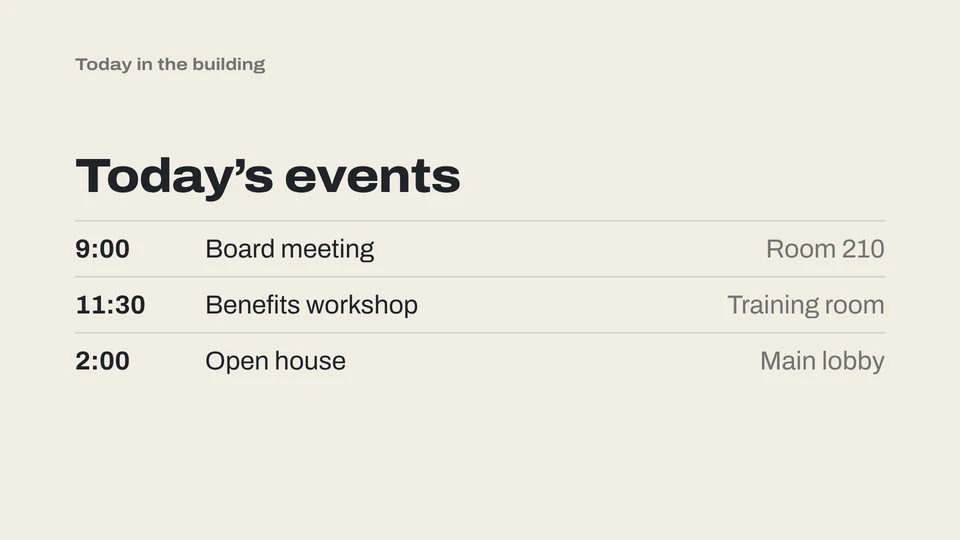
Offices and lobbies
Today’s events, welcome messages and wayfinding on the lobby display, set once and left alone.
Questions, answered.
Anything else? The browser version is the fastest way to see it for yourself.
Does it need internet?
No. LoopCast runs entirely on your computer and plays files from a folder on it. Internet is only needed to download it.
Will it work with our projector or TV?
Yes, if your computer sees it as a second display. LoopCast opens the output fullscreen on that display at its own resolution, whether it’s a projector, a TV or an LED wall processor.
What kinds of files can I use?
Images (JPG, PNG, GIF, WebP, SVG) and video (MP4 and WebM). Export slides from PowerPoint, Keynote or Canva as images and drop them in a folder.
Can I change slides during the event?
Yes. Add or remove files in the folder and LoopCast picks up the changes the next time the playlist comes around, or right away if you press Rescan.
Can I show a presenter’s laptop or a camera?
Yes. Plug it into an inexpensive USB HDMI capture stick and it shows up under Inputs. Preview it, then put it on screen with one click. Your playlist waits underneath, and Logo and Black still work.
Does it work on a Mac?
Yes, on macOS 12 or later, on Intel and Apple Silicon. The first time you open it, allow it in System Settings → Privacy & Security.
Can I use it without installing anything?
Yes. Open in your browser runs the full player in Chrome or Edge. The desktop app adds a few conveniences: it opens the projector window fullscreen on its own, where the browser needs one click or the F key.
Why does my computer warn me when I install it?
LoopCast isn’t signed with a paid developer certificate yet, so Windows and macOS ask you to confirm the first time. On Windows choose More info, then Run anyway. On a Mac use Open Anyway in Privacy & Security.
Get LoopCast
Version 1.4.0 for Windows 10 and 11, and macOS 12 or later on Intel and Apple Silicon.
- Windows: installs without administrator rights and adds Start menu and desktop shortcuts. Windows may say the app is unrecognized the first time. Choose More info, then Run anyway.
- Mac: open the disk image and drag LoopCast to Applications. The first time you open it, macOS blocks it because it isn’t from an identified developer yet. Go to System Settings → Privacy & Security, scroll down, click Open Anyway and confirm. You only do this once.
- Browser: runs right here in Chrome or Edge, with nothing to install. Prefer a file for offline use? Download the browser version.