LoopCast › Guides › Phone remote
Run the slideshow from your phone.
Walk the room, stand by the stage, or step out to the lobby, and still run the screens. LoopCast’s phone remote works in your phone’s browser over Wi-Fi, with nothing to install.
Clickers are great for next and back, but an event screen needs more than that: a logo between speakers, a quick “Lunch is in the Grand Ballroom” message, a countdown at the end of the break. The phone remote puts all of those on your phone, along with what’s playing now and what’s next.
Turn on the remote
- Open the LoopCast desktop app on the computer connected to the screen. Download LoopCast (free) for Windows or Mac.
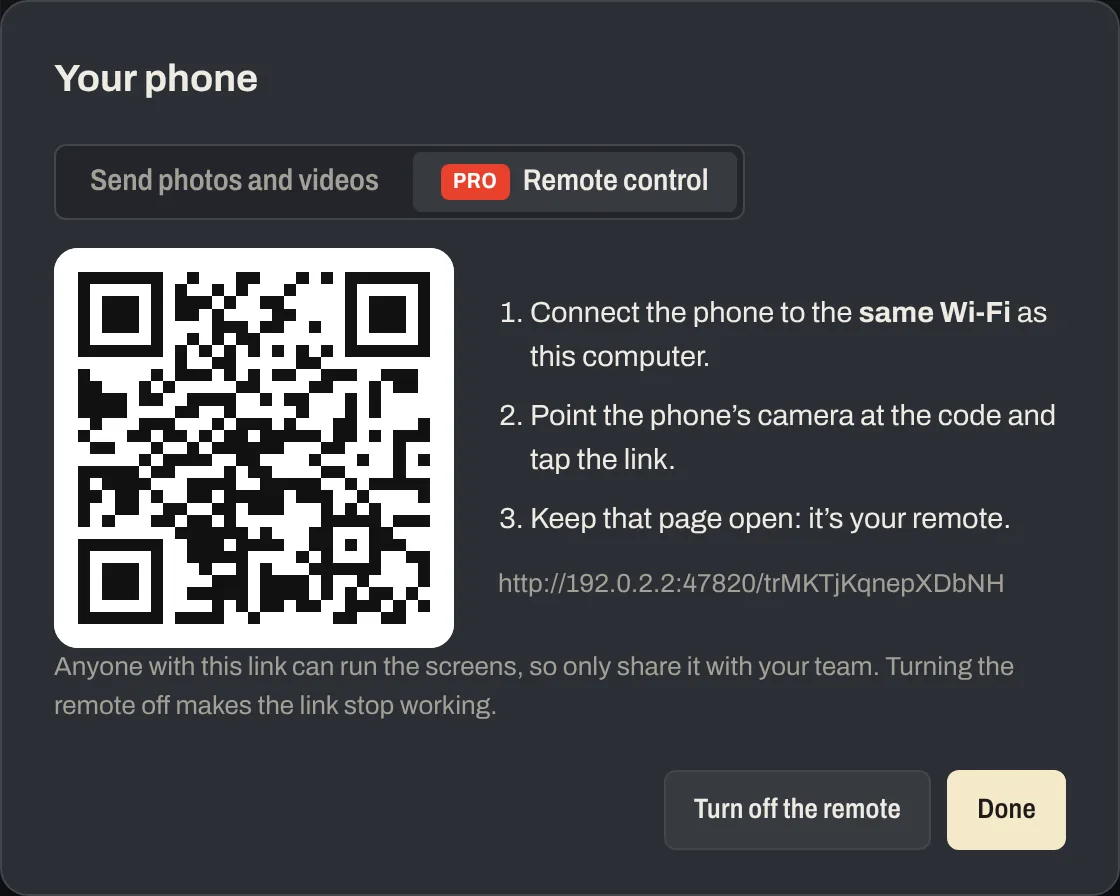
- Click From phone in the top bar, then choose the Remote control tab and press Turn on the remote.
- Connect your phone to the same Wi-Fi as the computer.
- Point the phone’s camera at the code on screen and tap the link. Keep that page open; it’s your remote.
What you can do from the phone
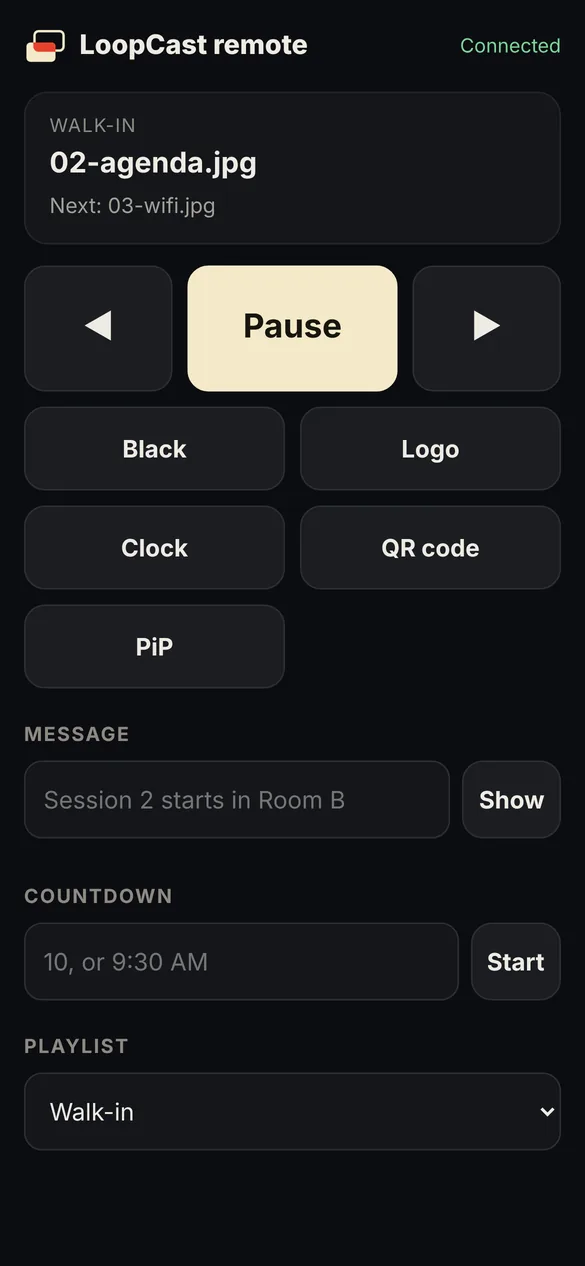
- See the playlist, the item on screen now, and the next one.
- Previous, play or pause, and next.
- Black and Logo, for the moment a speaker walks up.
- Turn the clock, QR code and picture in picture on or off.
- Type a message for the message bar, and clear it again.
- Start a countdown, in minutes or to a time.
- Switch to another playlist.
Good to know
- Same network. The phone talks straight to the computer over your Wi-Fi; nothing goes through the internet. Some guest and venue networks block devices from reaching each other. If the phone can’t connect, try another network, a phone hotspot that both devices join, or a small travel router.
- The link is the key. Anyone with the link can run the screens, so only share it with your team. Press Turn off the remote and the link stops working; turning it on again makes a new one.
- More than one phone. A producer and a stage manager can both open the same link.
- Keep the page open. If your phone locks, unlock it and the remote reconnects.
Phone remote or a clicker?
Use both. A presentation clicker is perfect for a speaker clicking through slides in a playlist set to Manual: LoopCast responds to arrow keys and Page Up and Page Down, which is what clickers send. The phone remote is for the person running the room: switching playlists, logos, messages and timers from wherever they’re standing.
Also on the phone: send photos
The other tab in the From phone box, Send photos and videos, lets anyone on the Wi-Fi send pictures from their phone into a Phone uploads playlist. Nothing shows on screen until you choose it. It’s a quick way to get a photo from today’s session onto the screen at the next break.
The phone remote is a Pro feature in the desktop app. It’s a Pro feature, free for everyone while LoopCast is in its launch.
Questions
Do I need to install an app on my phone?
No. The remote opens in your phone’s web browser after you scan the code. It works on iPhone and Android.
Does the phone remote need internet?
No. The phone and the computer need to be on the same Wi-Fi network, but nothing goes over the internet.
Why can’t my phone connect?
Make sure the phone is on the same Wi-Fi as the computer. Some guest and venue networks stop devices from reaching each other; try another network or a hotspot both devices join.
Is it secure?
The remote uses a long private link that changes each time you turn it on. Anyone with the link on the same network can control the screens, so share it only with your team, and turn the remote off when you’re done.
Can I use a presentation clicker too?
Yes. Clickers send arrow or Page Up and Page Down keys, which LoopCast uses for previous and next.
Does it work in the browser version of LoopCast?
No. The phone remote is in the desktop app for Windows and Mac.
Ready when the doors open.
Your computer will show a security warning the first time you open it. That’s expected. Here’s why, and what to click.