LoopCast › Guides › Countdown timer
A free countdown timer for church and event screens.
A big countdown tells a room exactly when things start. LoopCast shows one full screen in two keystrokes, counts to a number of minutes or to a time of day, and goes back to your slides when it reaches zero.
Countdown videos are popular, but they’re a fixed length: if the service starts at 10:30 you have to press play at exactly 10:25. A countdown to a time doesn’t care when you start it. LoopCast does both kinds, and it doesn’t interrupt your playlist: the slides keep their place underneath and come back when the countdown ends.
Start a countdown
- Open LoopCast and start your loop. Download LoopCast (free) for Windows or Mac, or open it in your browser; the countdown works in both.
- Press Timer (or T).
- Type minutes, like
10, or a time of day, like9:30 AMor14:00. - Change the words above the timer if you like, then press Start countdown.
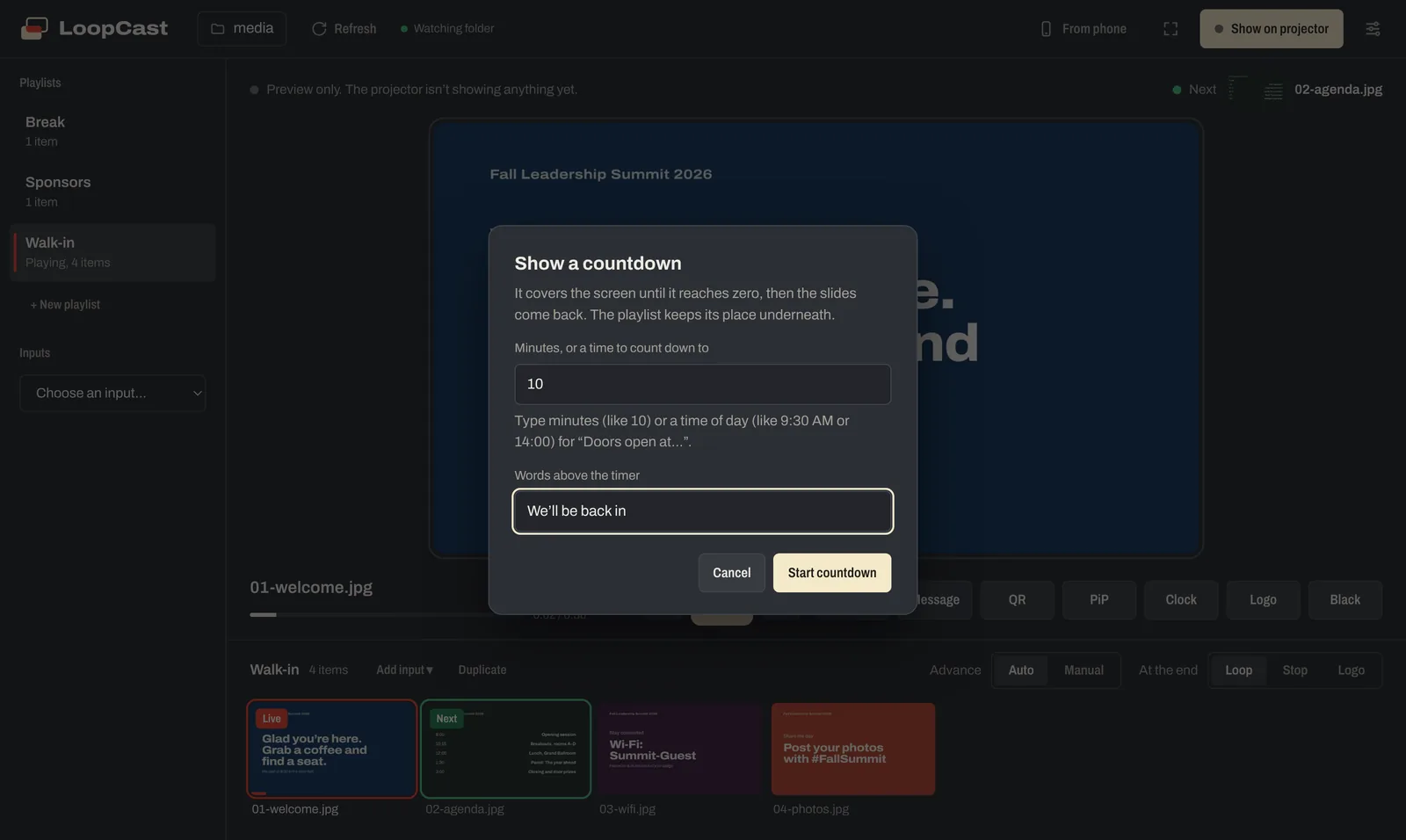
The countdown covers the screen. At zero it shows “Starting now” for a moment and then the slides come back. Press T again to stop it early.
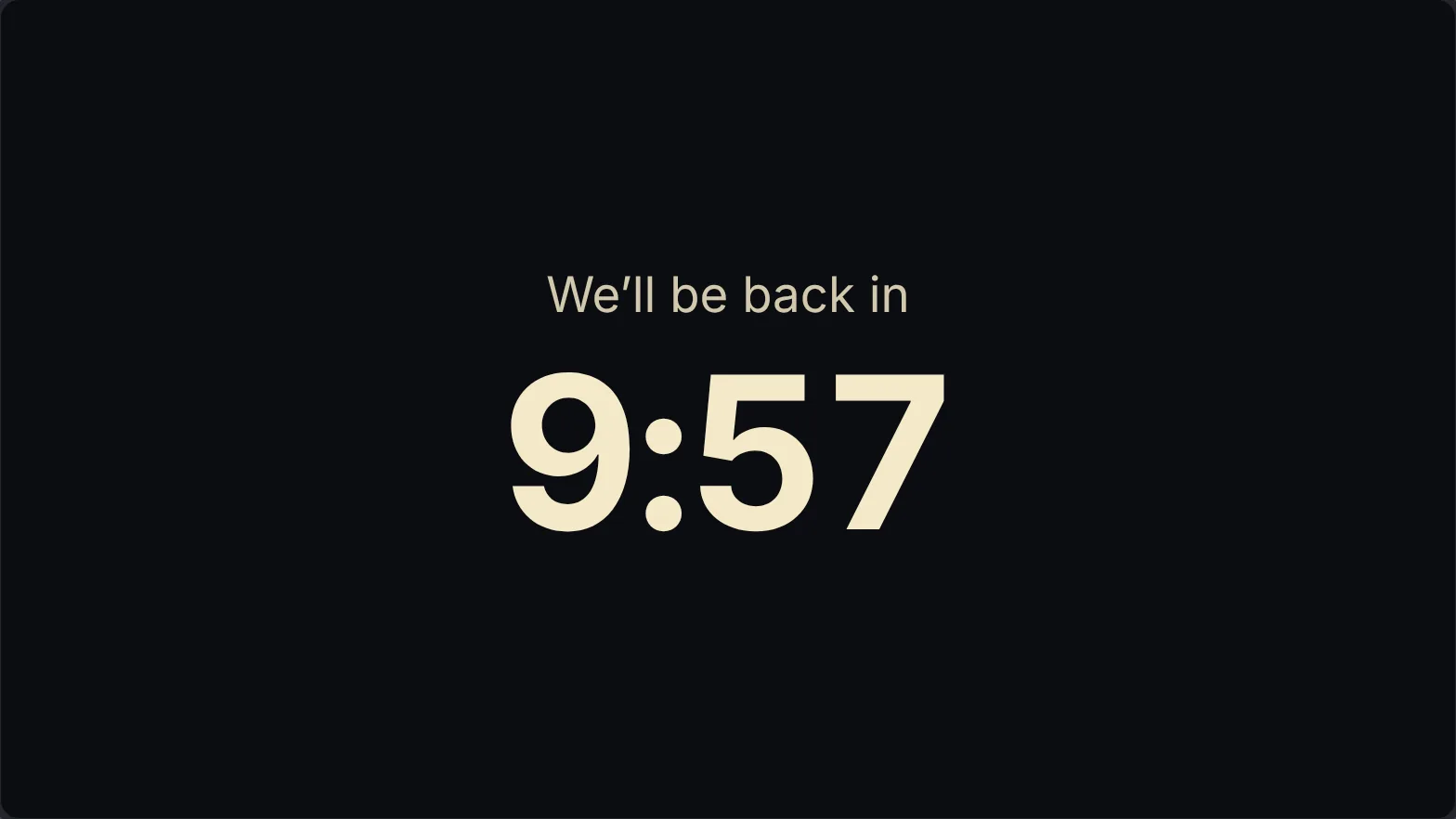
Minutes or a time of day?
- Minutes for breaks: “We’ll be back in 15:00”.
- A time for start times: type
10:30and LoopCast counts down to the next 10:30, so you can start it whenever you’re ready. If you leave the words as “We’ll be back in”, LoopCast changes them to “Starting in”, which reads better for a start time.
LoopCast remembers what you typed last, so a weekly service countdown is the same two keystrokes every Sunday.
A clock in the corner
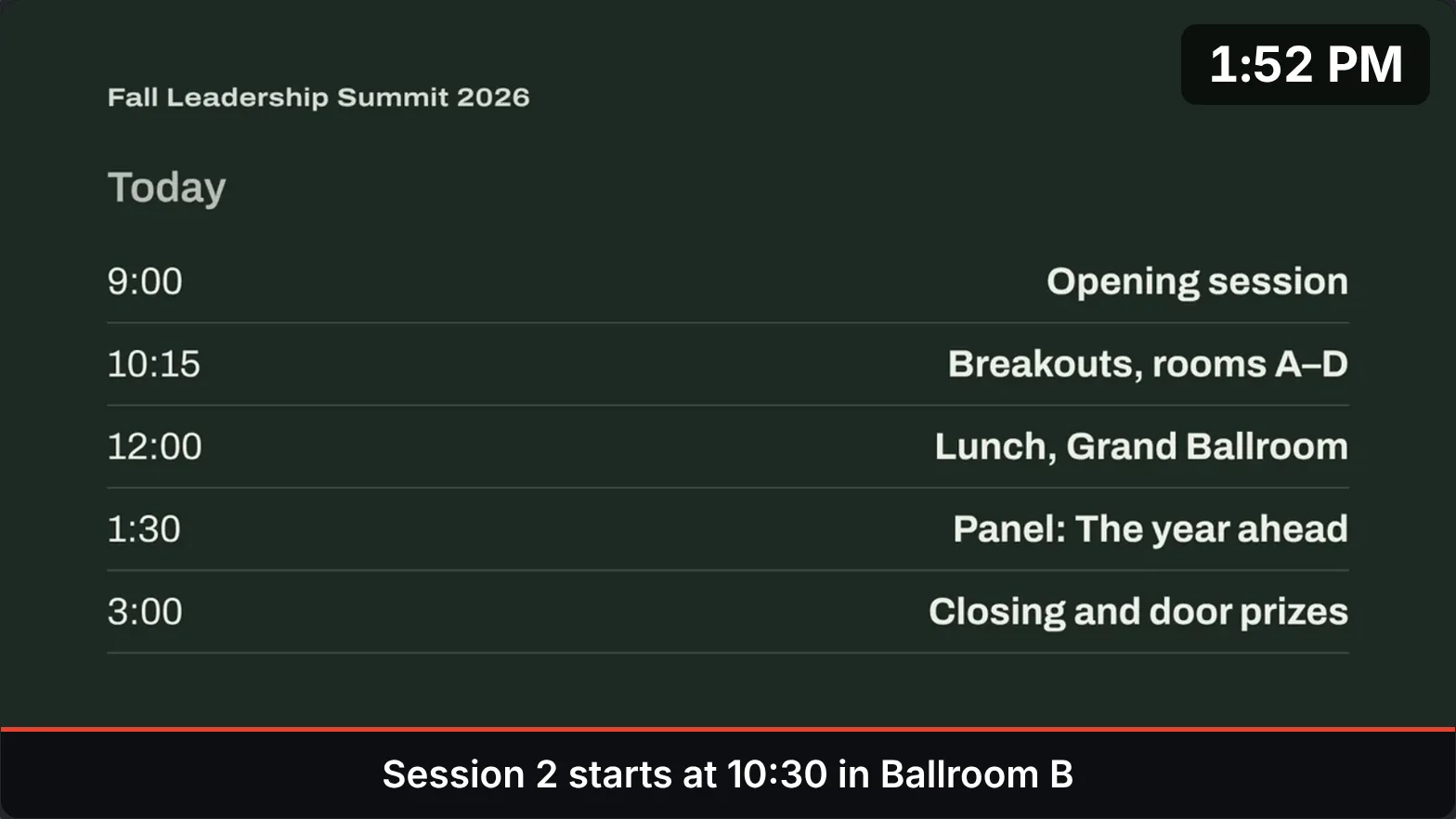
Sometimes you don’t need a countdown, just the time. Press Clock (or C) to put the current time in a corner over everything that plays. In Settings › Clock, pick the corner, size, font (Clean, Bold, Classic or Digital), color, background, 24-hour time and seconds. It’s handy for speakers keeping to time, breakout rooms and lobby screens.
A message bar for quick notes
Press Message (or M) and type a line, like “Session 2 starts at 10:30 in Ballroom B”. It slides in along the bottom of the screen over whatever is playing, and pressing M again clears it. In Settings › Message bar you can put it at the top instead and change its size, font, text color and background.
Where it helps
- Churches: a countdown to the service start on the sanctuary screen and the stream, after the announcement loop.
- Conferences: break timers, “Doors open at 8:30”, and a clock for speakers in breakout rooms.
- Schools: a countdown to the assembly, or a clock on the cafeteria screen.
- Workshops: timed exercises: press T, type 5, and everyone can see the time left.
Run it from your phone
With the phone remote, you can start a countdown, show a message or turn the clock on from your phone while you’re away from the computer. Countdowns, the clock and messages also appear in the streaming window for your livestream.
Questions
Is the countdown timer free?
Yes. The countdown, clock and message bar are part of LoopCast, which is free during our launch, on Windows, Mac and in the browser.
Can it count down to a specific time?
Yes. Type a time like 9:30 AM or 14:00 instead of minutes, and LoopCast counts down to the next time it’s that time.
What happens at zero?
It shows “Starting now” for a moment, then your slides come back. The playlist keeps its place underneath the whole time.
Can I change the words above the timer?
Yes. LoopCast asks for them each time you start a countdown, and remembers what you used last.
Can I show the time instead of a countdown?
Yes. Press Clock (or C) to show the time in a corner. Settings › Clock has the corner, size, font, color, background, 24-hour time and seconds.
Does it work with a countdown video?
Yes. Put the video in a playlist like any other file. Set that playlist to stop on its last item so it doesn’t loop back to the start.
Ready when the doors open.
Your computer will show a security warning the first time you open it. That’s expected. Here’s why, and what to click.