LoopCast › Guides › Picture in picture
Show a camera over your slides with picture in picture.
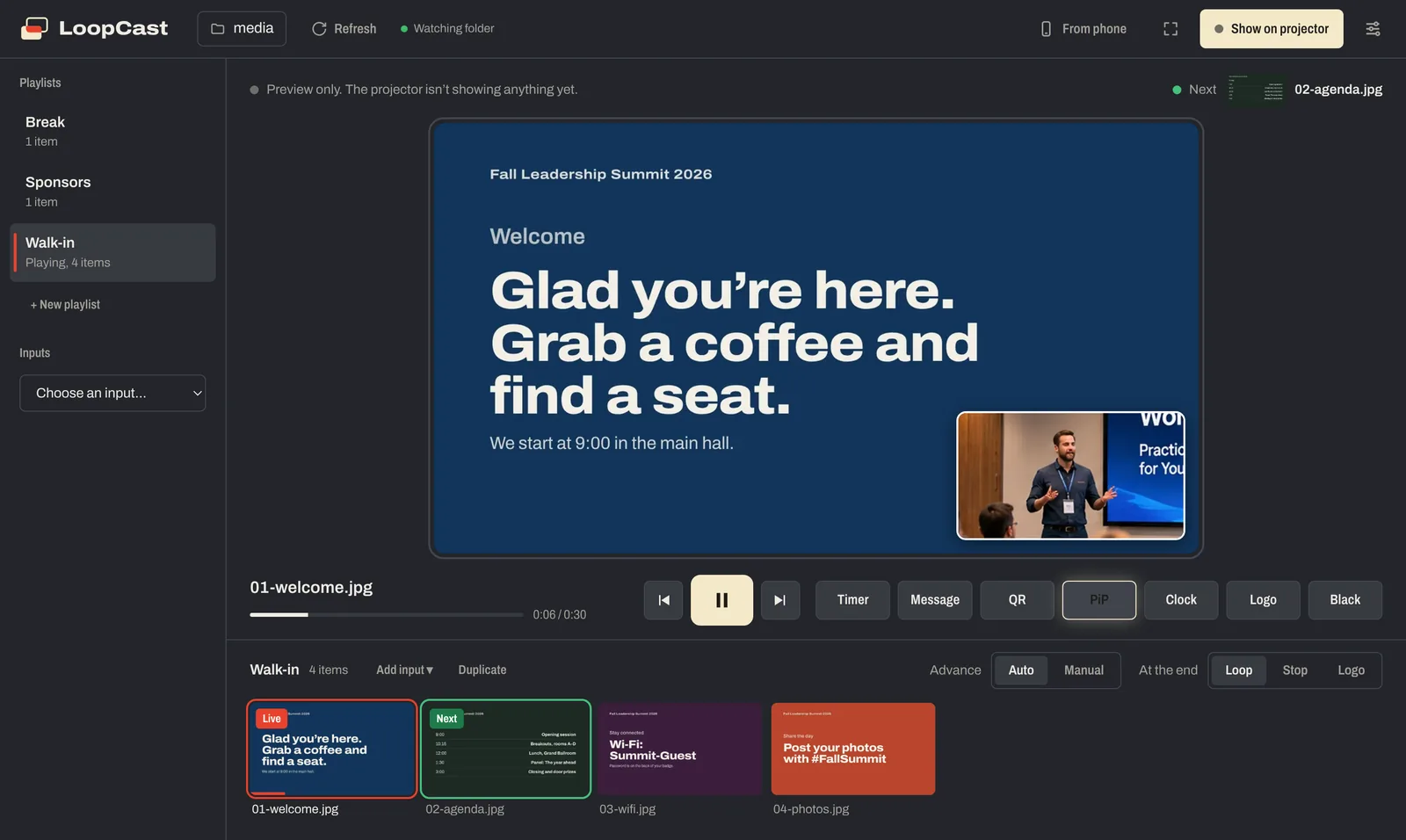
Put the speaker, the band or the worship leader in a corner of the screen while the slides keep looping behind them. LoopCast’s picture in picture uses any webcam or USB HDMI capture device.
In a big room, the people at the back can’t see the speaker’s face. In an overflow room, they can’t see them at all. Picture in picture solves both: a live camera in a corner of the screen, with the agenda, sponsor slides or lyrics images still changing behind it.
What you need
- The LoopCast desktop app for Windows or Mac. Download LoopCast (free) for Windows or Mac.
- A camera LoopCast can see: a USB webcam, or a camera with HDMI out plugged into a USB HDMI capture stick. Inexpensive capture sticks work well. A presenter’s laptop through a capture stick works too.
Turn it on
- Plug in the camera or capture stick.
- Open Settings › Picture in picture and choose the camera. On a Mac, macOS asks your permission the first time.
- Pick a corner, a size (Small, Medium or Large), a shape (square corners, rounded or a circle) and a border (none, white, cream or red). Turn on Mirror for a webcam facing the presenter.
- Press PiP (or P) under the preview to show it, and again to hide it.

The slides keep going underneath
Picture in picture doesn’t pause anything. The playlist keeps advancing behind the camera, so a walk-in loop or sponsor slides carry on as normal. You can switch playlists, show the logo or a countdown, and the camera stays in its corner until you turn it off. It shows over live web pages too, and in the streaming window for your livestream.
Why fixed corners?
The picture snaps to one of four corners at three sizes instead of being dragged around. That keeps it in the same place every time you turn it on, lines it up neatly with the clock or QR code if they share a corner, and means a volunteer can’t accidentally drop it in the middle of a slide. If the QR code is set to the same corner, Settings tells you so you can move one of them.
Ideas
- Conferences: the speaker in the corner of the agenda or sponsor loop; a remote speaker’s laptop through a capture stick.
- Churches: the worship leader or pastor on the lobby and overflow screens, over the announcement slides.
- Trade shows: a live product demo camera over the booth loop.
- Schools: the stage camera over the program slides at an assembly.
Full screen instead?
To show a camera or laptop full screen rather than in a corner, use Inputs in the sidebar: preview the input, then put it on screen with one click. The playlist waits underneath, and Logo and Black still work.
Picture in picture is a Pro feature in the desktop app. It’s a Pro feature, free for everyone while LoopCast is in its launch.
Questions
What cameras work with picture in picture?
Any camera your computer sees as a webcam: built-in and USB webcams, and HDMI cameras through a USB HDMI capture stick.
Do the slides keep changing behind the camera?
Yes. The playlist keeps playing underneath, and you can switch playlists, show the logo or start a countdown while the camera stays in its corner.
Can I drag the picture anywhere?
No, on purpose. It snaps to one of four corners at three sizes, so it’s always in the same place and can’t end up over the middle of a slide.
Can I make it round?
Yes. Settings › Picture in picture has square corners, rounded and circle shapes, and a choice of border.
Does it work in the browser version?
No. Picture in picture is in the desktop app for Windows and Mac.
Does it show in the livestream?
Yes. If you use the streaming window for OBS, vMix or Ecamm, the camera shows there too.
Ready when the doors open.
Your computer will show a security warning the first time you open it. That’s expected. Here’s why, and what to click.