LoopCast › Guides › PowerPoint kiosk mode
PowerPoint kiosk mode, and when to use something else.
PowerPoint can loop a slideshow on its own for a booth or lobby screen. Here’s how to set it up properly, the problems people hit, and when a dedicated looping player is less hassle.
Set up kiosk mode
- Give every slide a timing. On the Transitions tab, check After, set the seconds, and press Apply To All. (Or use Slide Show › Rehearse Timings to set each one as you go.)
- Open Slide Show › Set Up Slide Show.
- Under Show type, choose Browsed at a kiosk (full screen). This turns on Loop continuously until ‘Esc’ for you.
- Under Advance slides, choose Using timings, if present.
- If a second screen is connected, pick it under Multiple monitors.
- Press OK, then start the slide show from the beginning.
In kiosk mode, clicks don’t advance slides, which stops passers-by from skipping ahead. Press Esc to stop.
Why kiosk mode won’t advance or loop
- A slide has no timing. Kiosk mode ignores clicks, so a slide without an After time waits forever. Check each slide on the Transitions tab.
- Advance slides is set to Manually. Change it to Using timings, if present.
- A video doesn’t play. Select the video and, on the Playback tab, set Start to Automatically. Make sure the slide’s timing is at least as long as the video.
- Linked media is missing. If the deck links to a video on another computer’s drive, it won’t play at the venue. Embed it, or keep the files with the deck.
- The screen sleeps. Set the computer’s sleep to never for the day, and turn off the TV’s eco timer.
Where kiosk mode gets awkward
Kiosk mode is fine for one deck that doesn’t change all day. It gets harder when:
- Content changes during the event. Editing means stopping the show, changing the deck and restarting it, in front of the room.
- You need several loops. Walk-in, sponsors, lunch and the afternoon all mean separate files and stopping and starting between them.
- You want to see what the room sees without the audience seeing your controls.
- You need a logo between sessions, a countdown or a quick message.
- The deck came from someone else. Missing fonts and different PowerPoint versions change how slides look on the venue laptop.
The alternative: a looping player
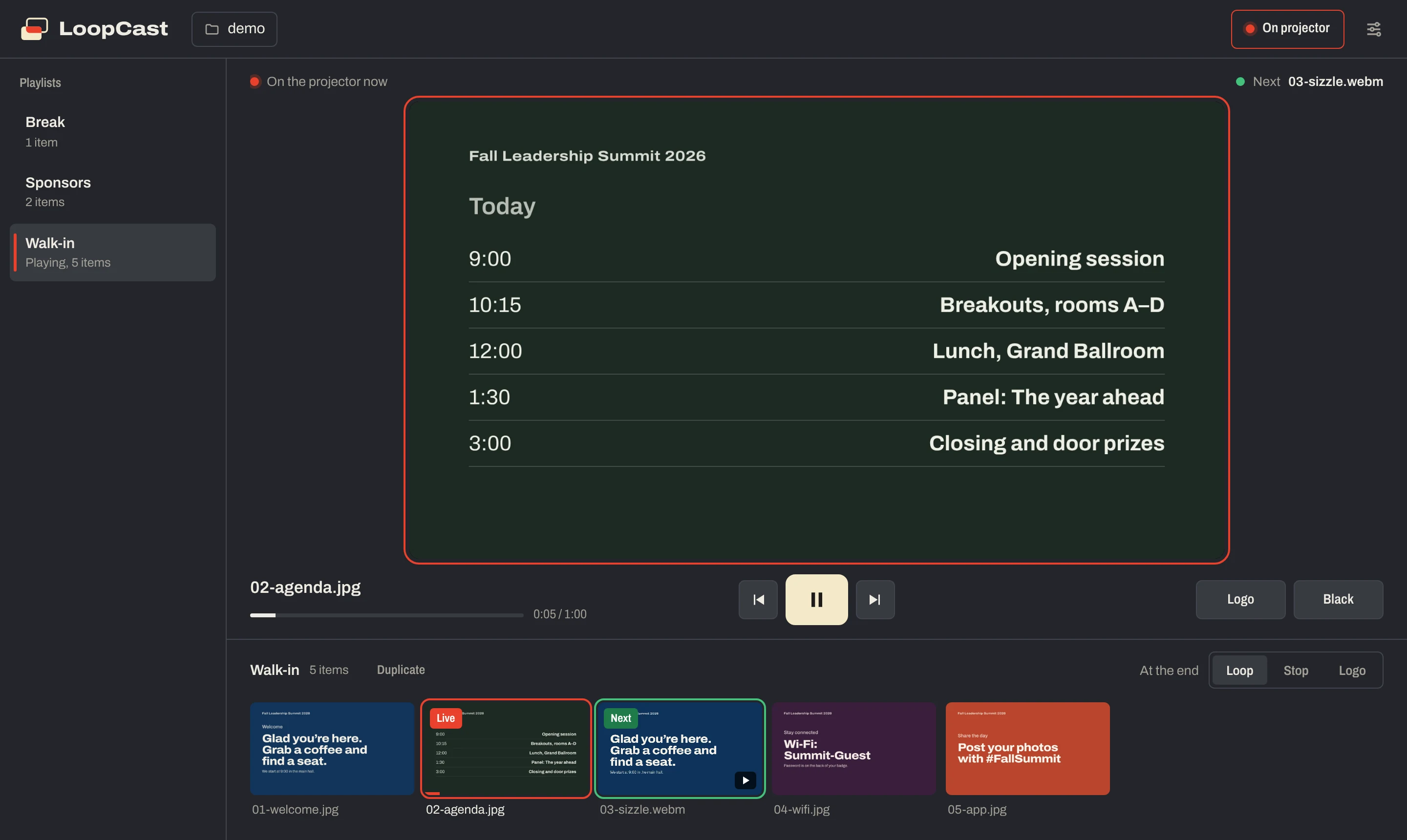
LoopCast plays a folder instead of a deck. Export your PowerPoint as a PDF (File › Export › PDF), put it in a folder with any videos and images, and LoopCast loops it, each PDF page as a slide.
- Drop new files into the folder and they join the loop without stopping it.
- One folder per playlist; switch between them with a click, or by schedule.
- A live preview on your laptop while the screen shows only the slides.
- Logo (H) and black (B) on one key; countdown (T), message (M), clock (C) and QR code (Q).
- A PDF looks the same on every computer, so fonts can’t go missing.
PowerPoint kiosk mode vs LoopCast
| PowerPoint kiosk mode | LoopCast | |
|---|---|---|
| Price | Included with PowerPoint | Free during launch |
| Loops unattended | Yes | Yes |
| Content | One deck | Folders of images, PDFs and video |
| Change content while it runs | Stop, edit, restart | Drop files in the folder |
| Several loops | Separate decks | One playlist per folder |
| Schedule by time of day | No | Yes |
| Preview without the room seeing | Presenter view (not in kiosk mode) | Yes |
| Logo, countdown, message, clock, QR | No | Yes |
| Animations and transitions | Yes | Fades between slides; no in-slide animation |
| Starts by itself after a restart | No | Yes, with two settings |
Which should you use?
- One deck, set once, shown all day: PowerPoint kiosk mode is fine.
- Animations matter: stay with PowerPoint; a PDF won’t keep them.
- Several loops, changes during the day, a logo or countdown, or a screen that should run by itself: try LoopCast.
Source: Microsoft: Create a self-running presentation. PowerPoint is a trademark of Microsoft. LoopCast is not affiliated with Microsoft.
Questions
What is PowerPoint kiosk mode?
It’s the Browsed at a kiosk (full screen) option in Set Up Slide Show. The presentation loops until someone presses Esc, and clicks don’t advance slides.
Why won’t my kiosk-mode PowerPoint advance?
Kiosk mode ignores clicks, so every slide needs a timing. Set After on the Transitions tab and choose Using timings, if present in Set Up Slide Show.
Can I update a PowerPoint kiosk without stopping it?
No, you need to stop the show, edit and restart. LoopCast plays a folder instead, so new files join the loop without stopping it.
Does PowerPoint kiosk mode work on a Mac?
Yes. PowerPoint for Mac has the same Browsed at a kiosk option in Set Up Slide Show.
Will my PowerPoint animations work in LoopCast?
No. LoopCast plays PDFs, images and video. Export the deck as a PDF, which keeps each slide’s look but not its animations.
Ready when the doors open.
Your computer will show a security warning the first time you open it. That’s expected. Here’s why, and what to click.